Appearance
Google Tag Manager
These instructions are designed for tag implementation through Google Tag Manager.
Page Load Tag
This tag keeps track of general site visitor traffic, and is placed on every page of the site EXCEPT conversion pages.
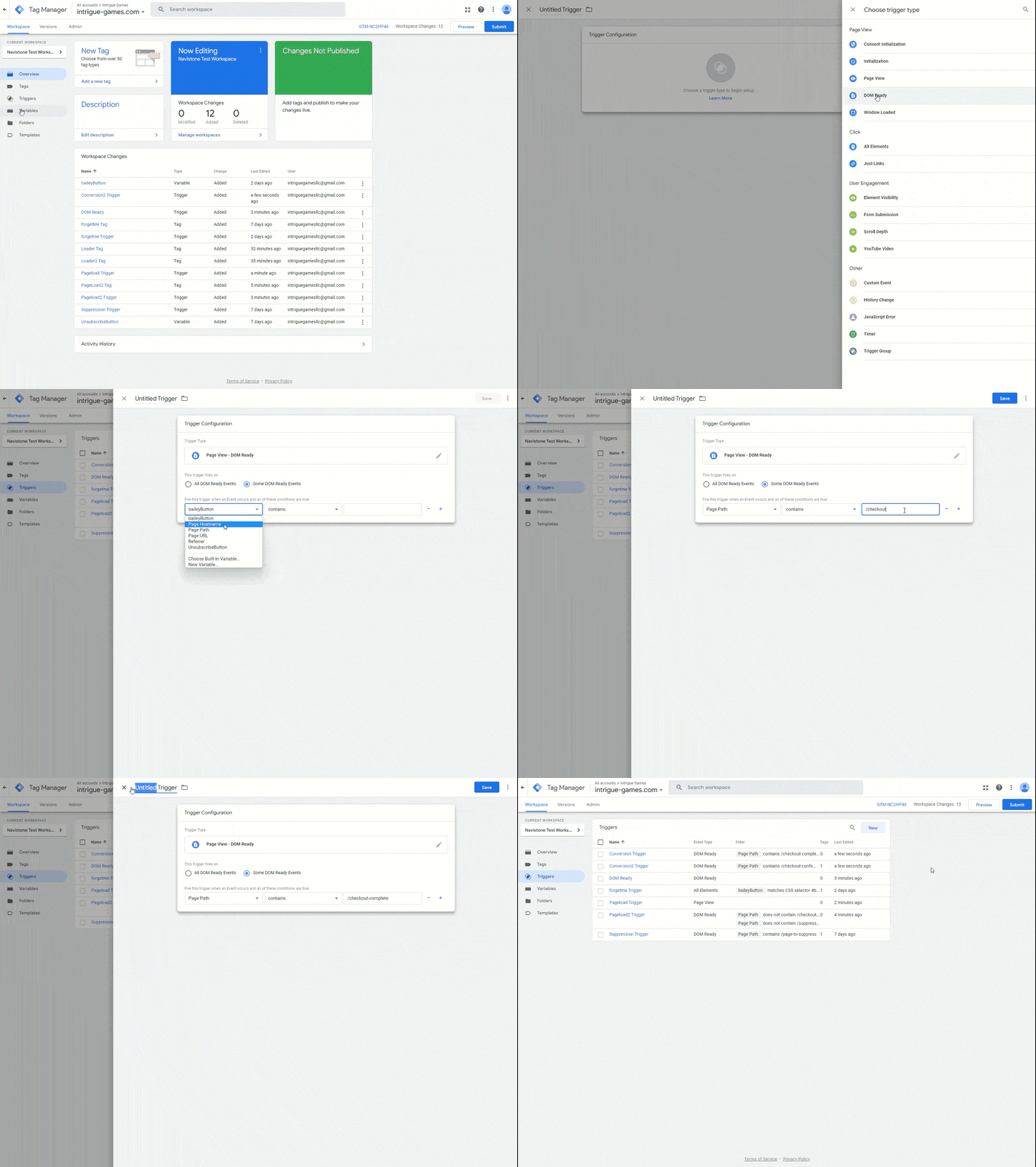
Conversion Trigger
- Choose Triggers from left menu > New > Name trigger ‘Conversion Trigger’
- Choose DOM Ready trigger type from list > Some DOM Ready Events
- First Dropdown: Page Path > Second Dropdown: Contains > Insert conversion URL path that displays on your site (/thank-you, /order-confirmation, /checkout-complete, etc.).
Loader Tag
For our tag to run successfully and collect everything it needs, we can start by creating a loader tag.- Choose Tags from left menu > New > Name tag 'Loader Tag'
- Choose Custom HTML from list
- Insert the following snippet into the HTML box
- Set trigger to All Pages on Page View
javascript<script type="text/javascript" src="https://cdn.datasteam.io/js/datasteampx.js" defer async></script>Page Load Tag
- Choose Tags from left menu > New > Name tag ‘Page Load Tag’
- Choose Custom HTML from list
- Insert the following code snippet into the HTML box
- Update Access Key placeholder, leaving single quotes intact (Your_Access_Key).
Ex.) AccessKey: ‘000000000000’ - Choose All Pages on Page View from trigger list
- Click Add Exception > Choose the trigger you created above (conversion trigger)
javascript<script defer async> MGX = typeof MGX === 'undefined' ? [] : MGX; MGX.push({ AccessKey: 'Your_Access_key' }); </script>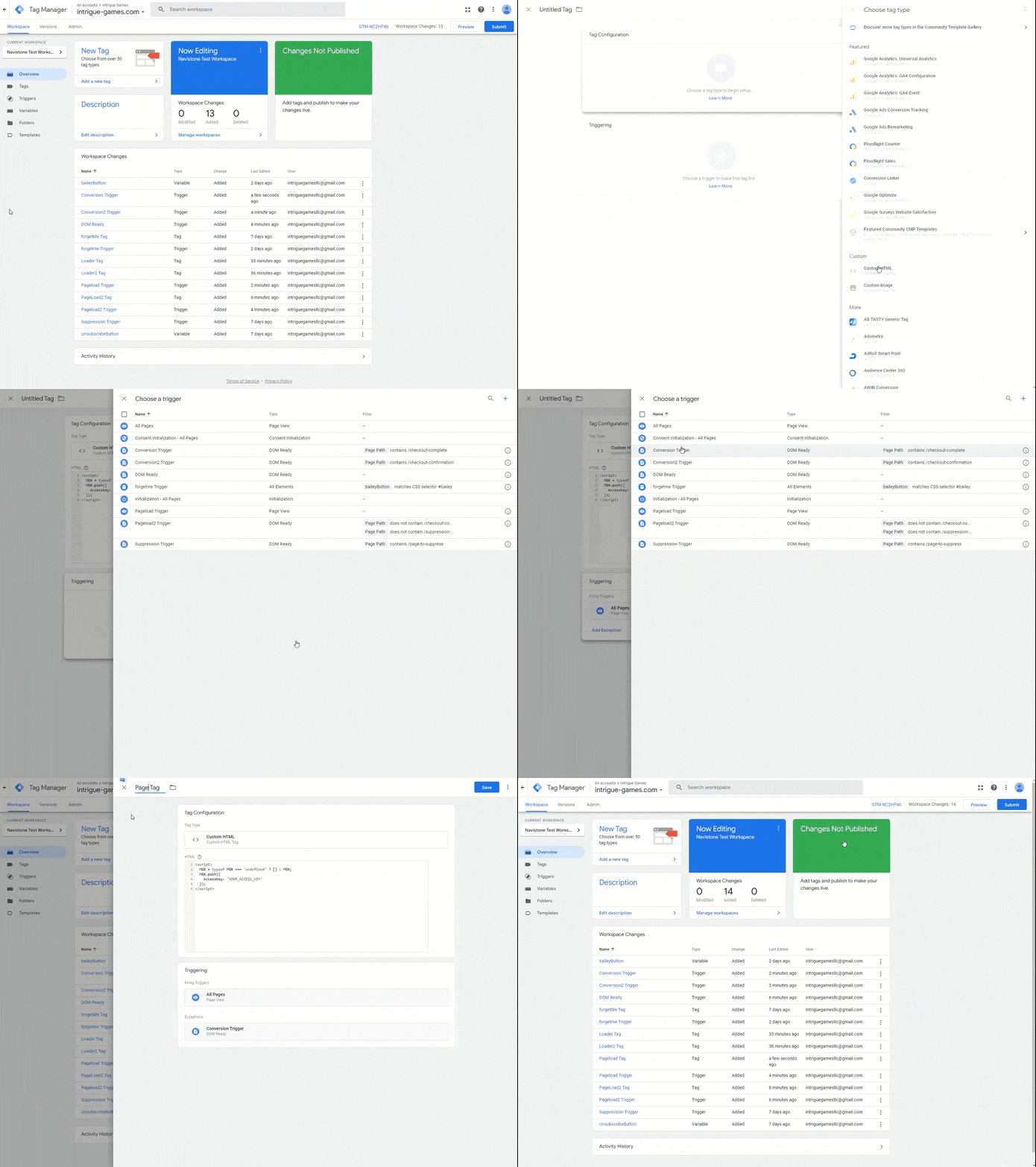
Conversion Tag
This tag records when a user completes a conversion on the site. This can come in the form of a purchase, form submitted, etc.
A conversion page is the final confirmation/ checkout complete/ thank you page that displays after a user has completed a conversion action on the site.
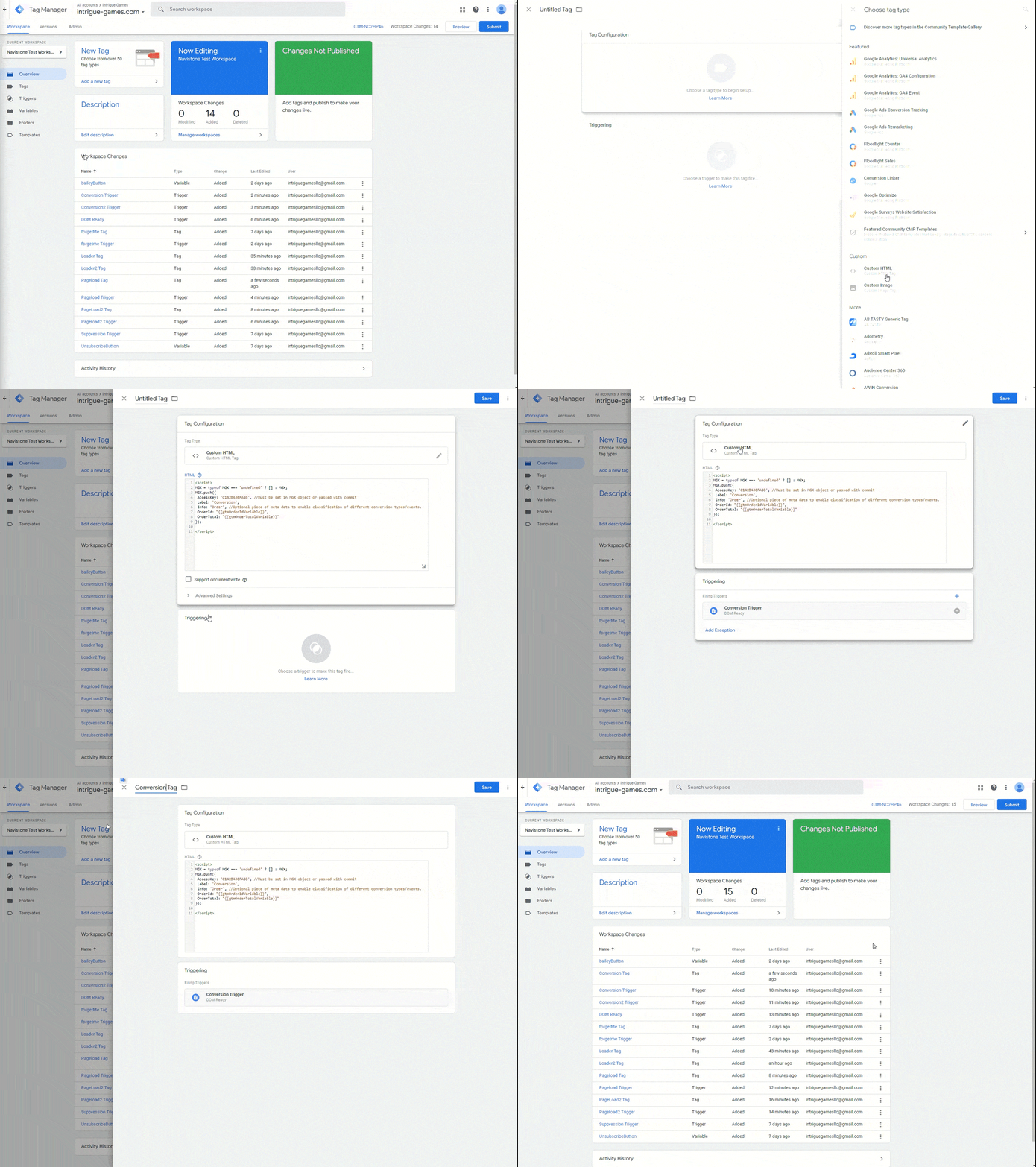
- Choose Tags from left menu > New > Name tag ‘Conversion Tag’
- Choose Custom HTML from list
- Insert the following code snippet into the HTML boxjavascript
<script> MGX = typeof MGX === 'undefined' ? [] : MGX; MGX.push({ AccessKey: 'Your_Access_Key', //Must be set in MGX object or passed with commit Label: 'Conversion', Info: 'Order', //Optional piece of meta data to enable classification of different conversion types/events. OrderId: '{{gtmOrderIdVariable}}', OrderTotal: '{{gtmOrderTotalVariable}}' }); </script> - Update access key placeholder (Your_Access_Key), leaving single quotes intact.
Ex.) AccessKey: ‘000000000000’ - Update OrderId and OrderTotal placeholders ( '{{ }}' ) with the order variables you created to track these, leaving single quotes intact
- If order values are not needed, please input null with NO quotes
- OrderId: null,
- OrderTotal: null
- If order values are not needed, please input null with NO quotes
- Set trigger to the conversion trigger you created above (conversion trigger)